Store and host your files on a server you own
Vaze is a file server that runs in one Docker container. Organize files from the web dashboard or the Android app, share them with public or signed links, and use it as the storage behind your own projects.
$ curl -fsSL https://raw.githubusercontent.com/darseen/vaze/main/scripts/install.sh | shNeeds Docker with the Compose plugin. Other ways to install
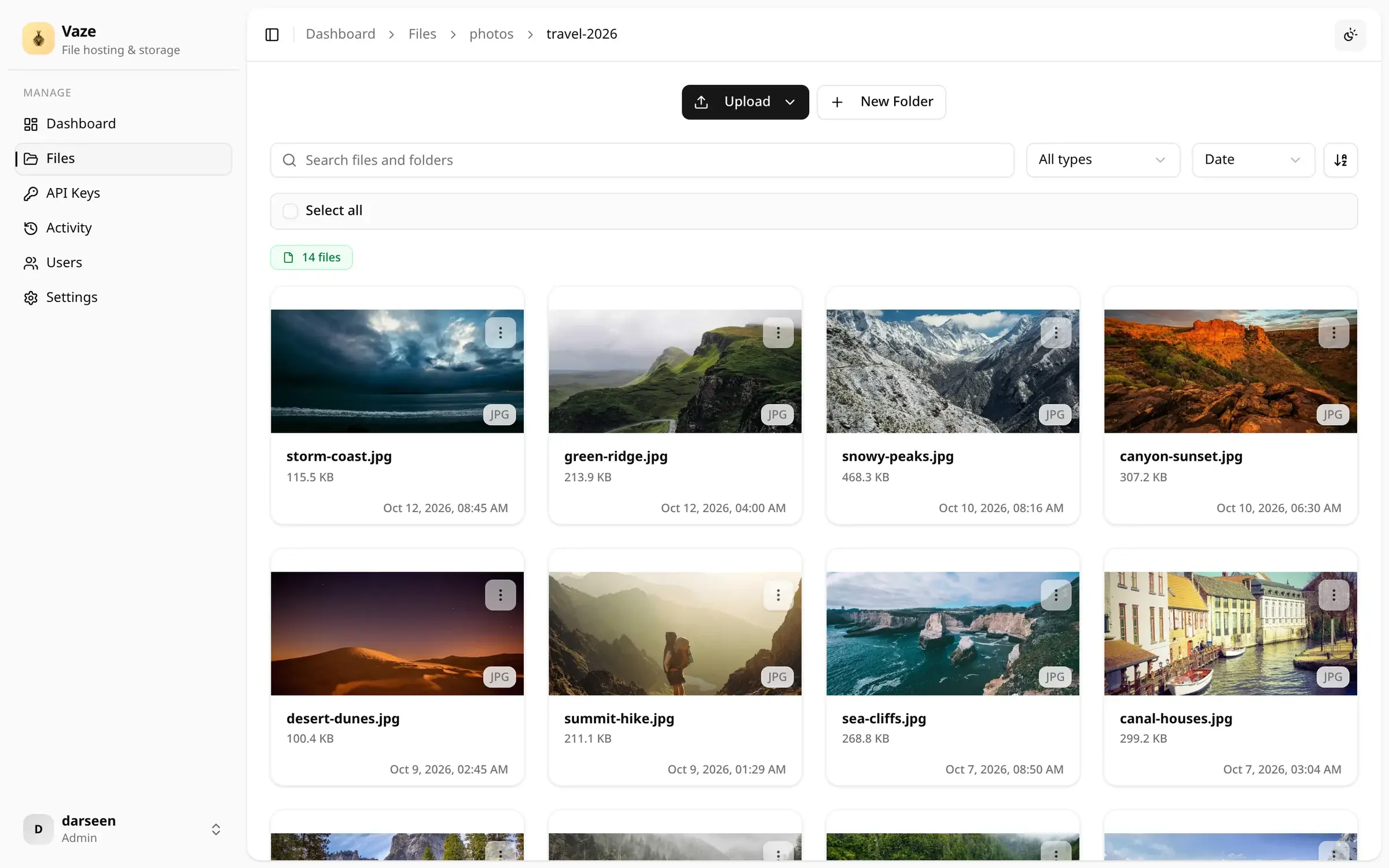
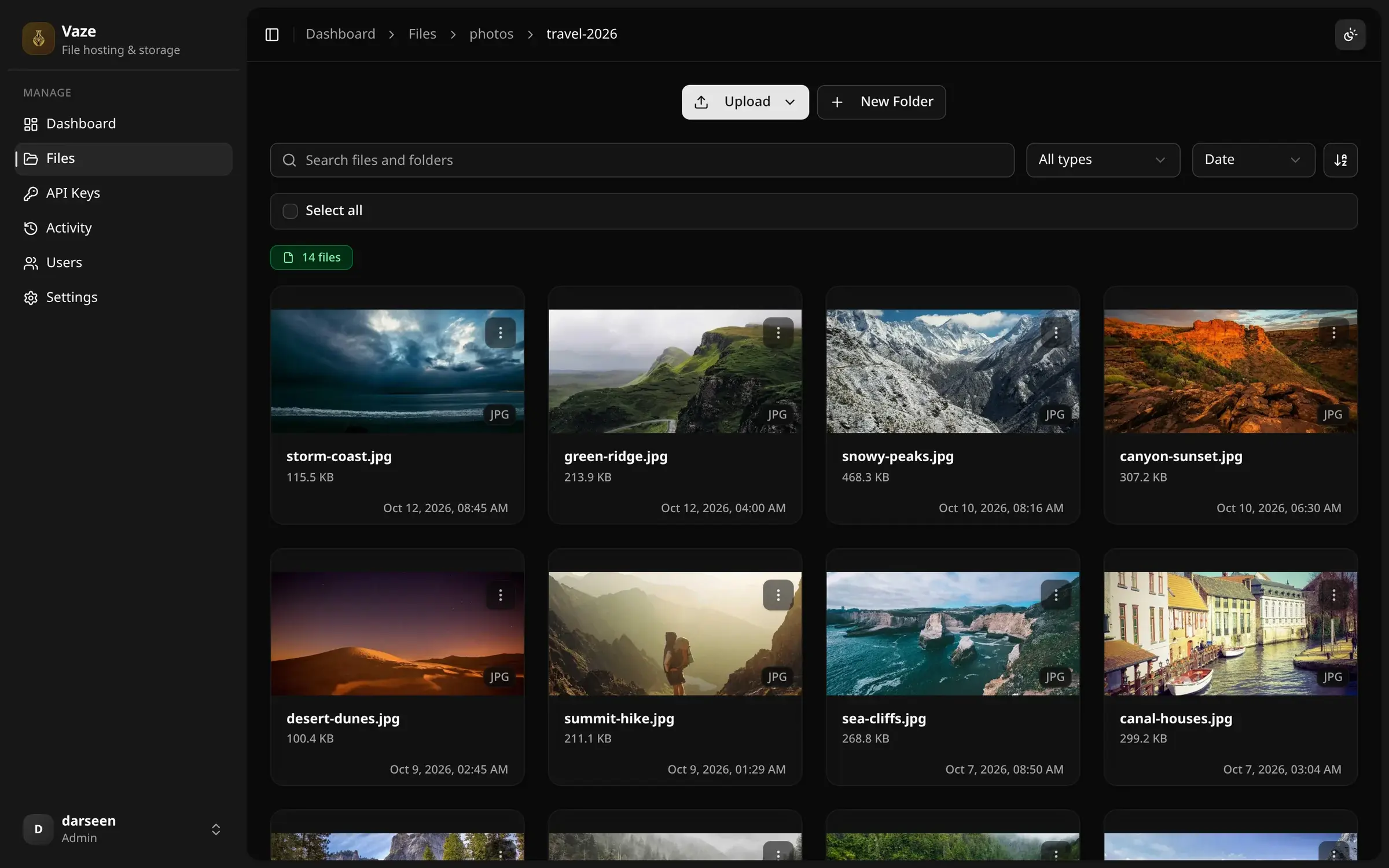
Browse and preview everything
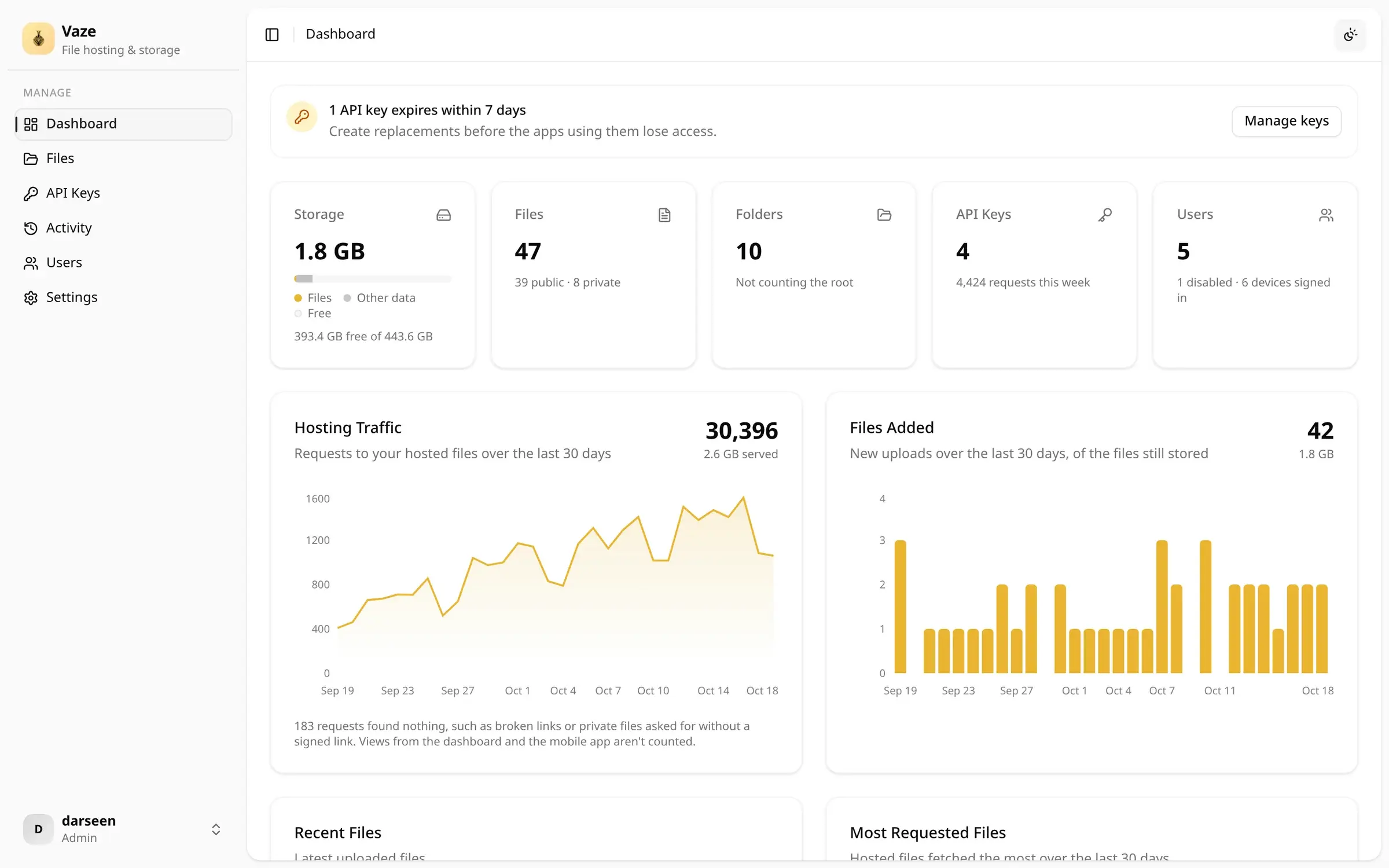
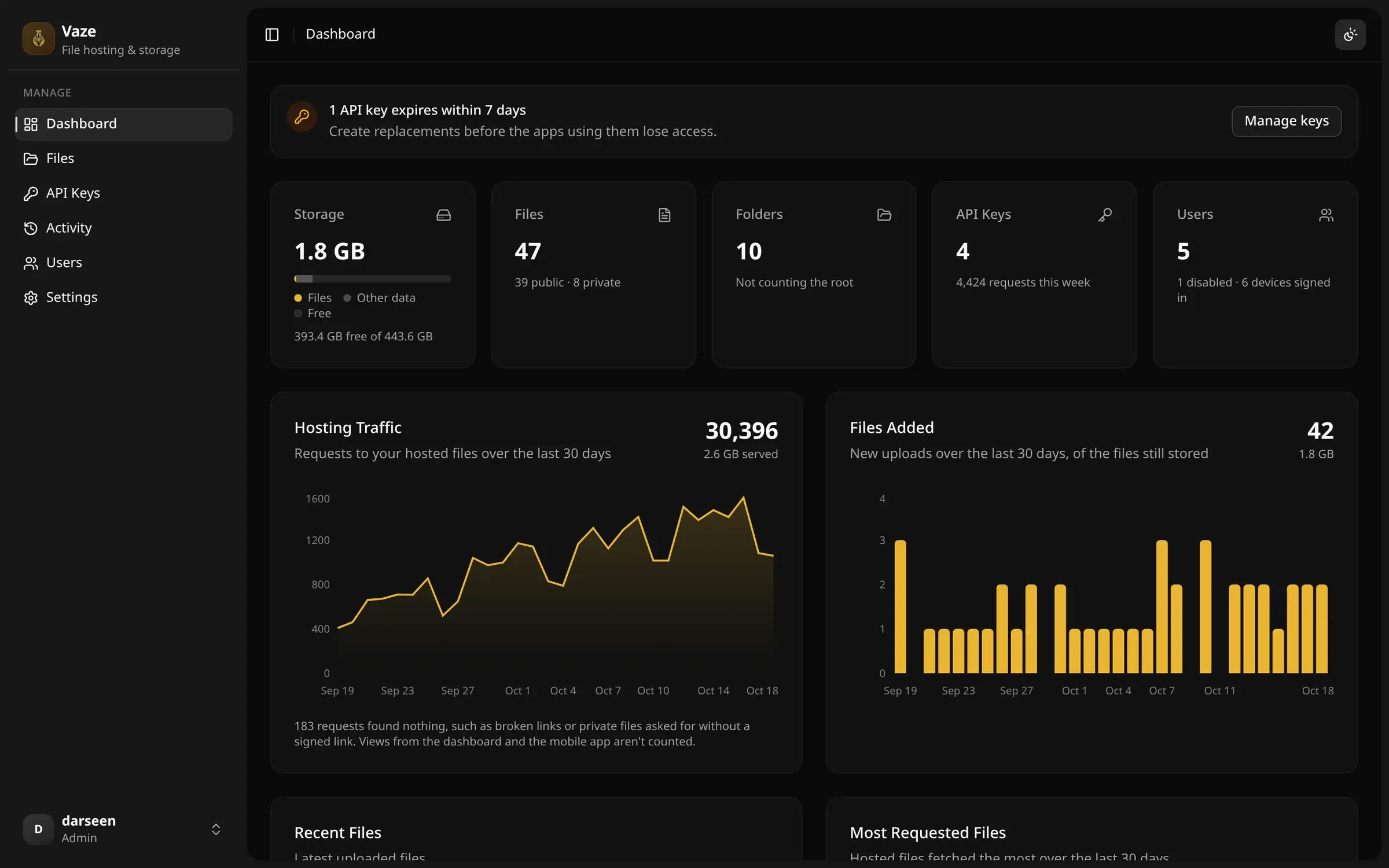
A dashboard built around the files themselves, with thumbnails, a viewer and the folders you uploaded.
Folder uploads
Drop in a whole folder and Vaze recreates it on the server, with progress, speed and cancel for every file.
Previews for everyday formats
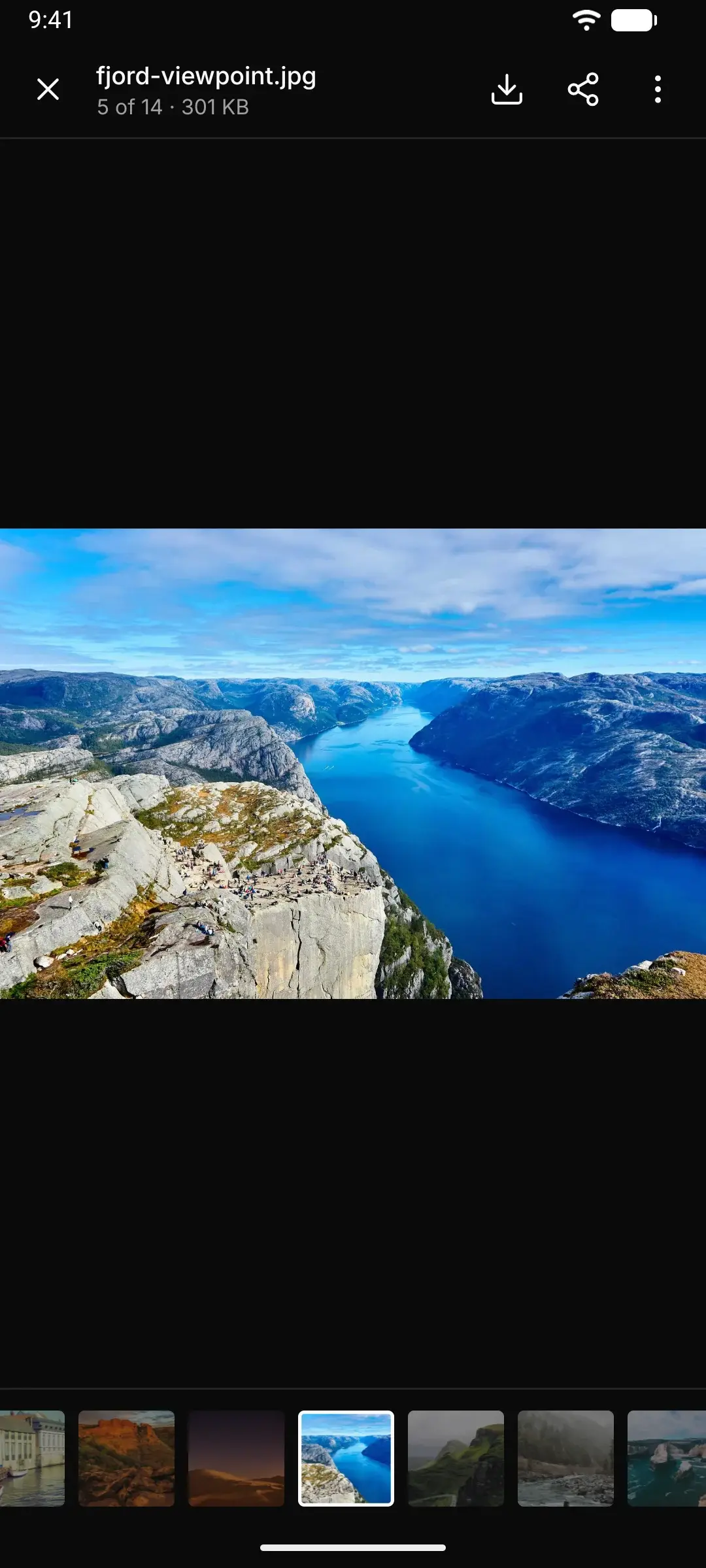
Images, video, audio, PDFs and text open in a full-screen viewer, so you rarely need to download first.
Search and filter
Find files and folders by name, and narrow a folder down to images, videos or documents.
Work on many at once
Select files to move or delete together, or download a folder or a selection as one zip.
Host files at URLs you choose
Files keep the names you upload them with, so a link like /api/hosting/website/hero.jpg stays the same until you change it.
Public or private
Make a file or a whole folder private, then share it with a signed link that expires when you say.
Made for embedding
Range requests let video and audio seek, and ETag revalidation turns repeat loads into an empty 304.
Traffic you can see
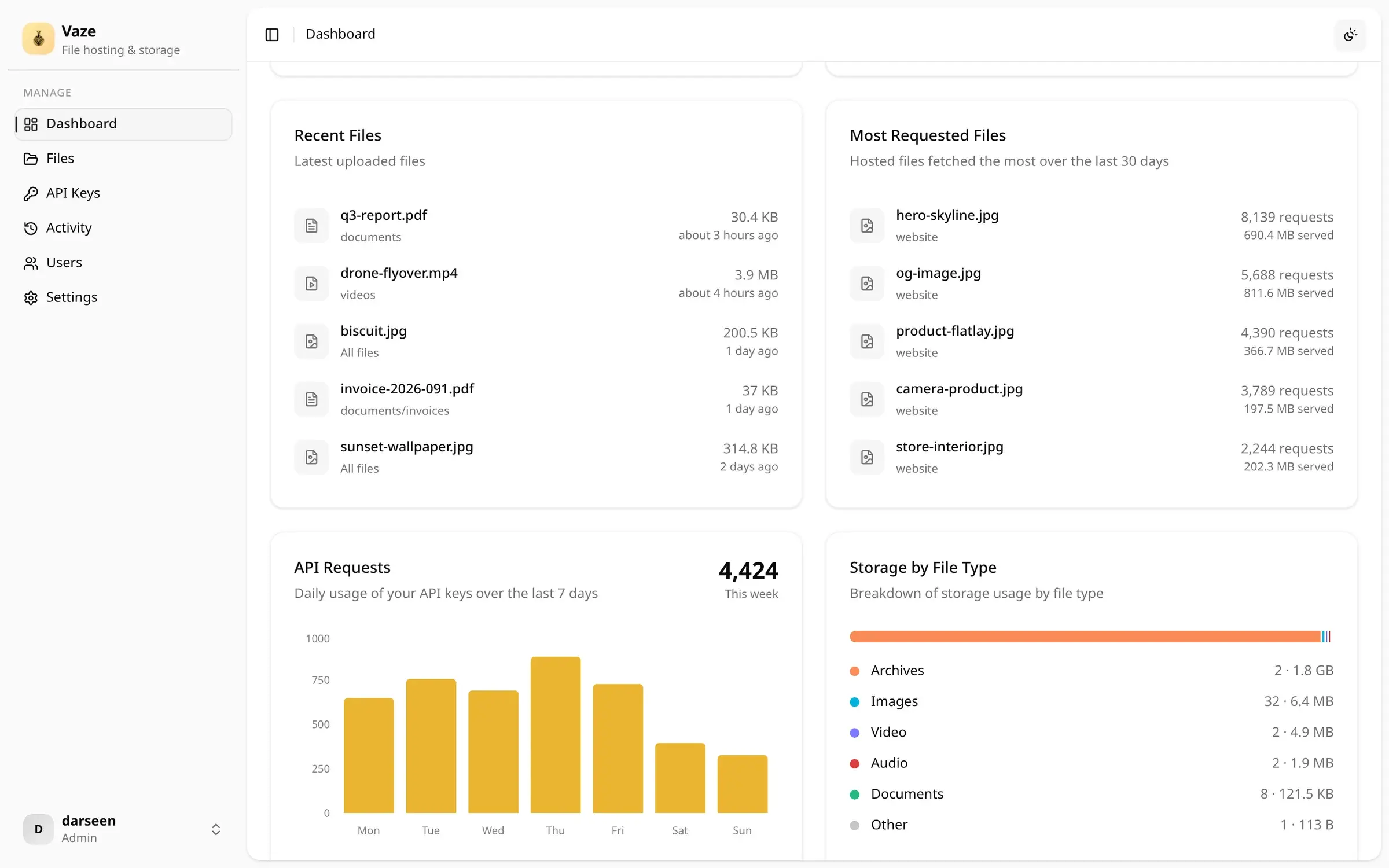
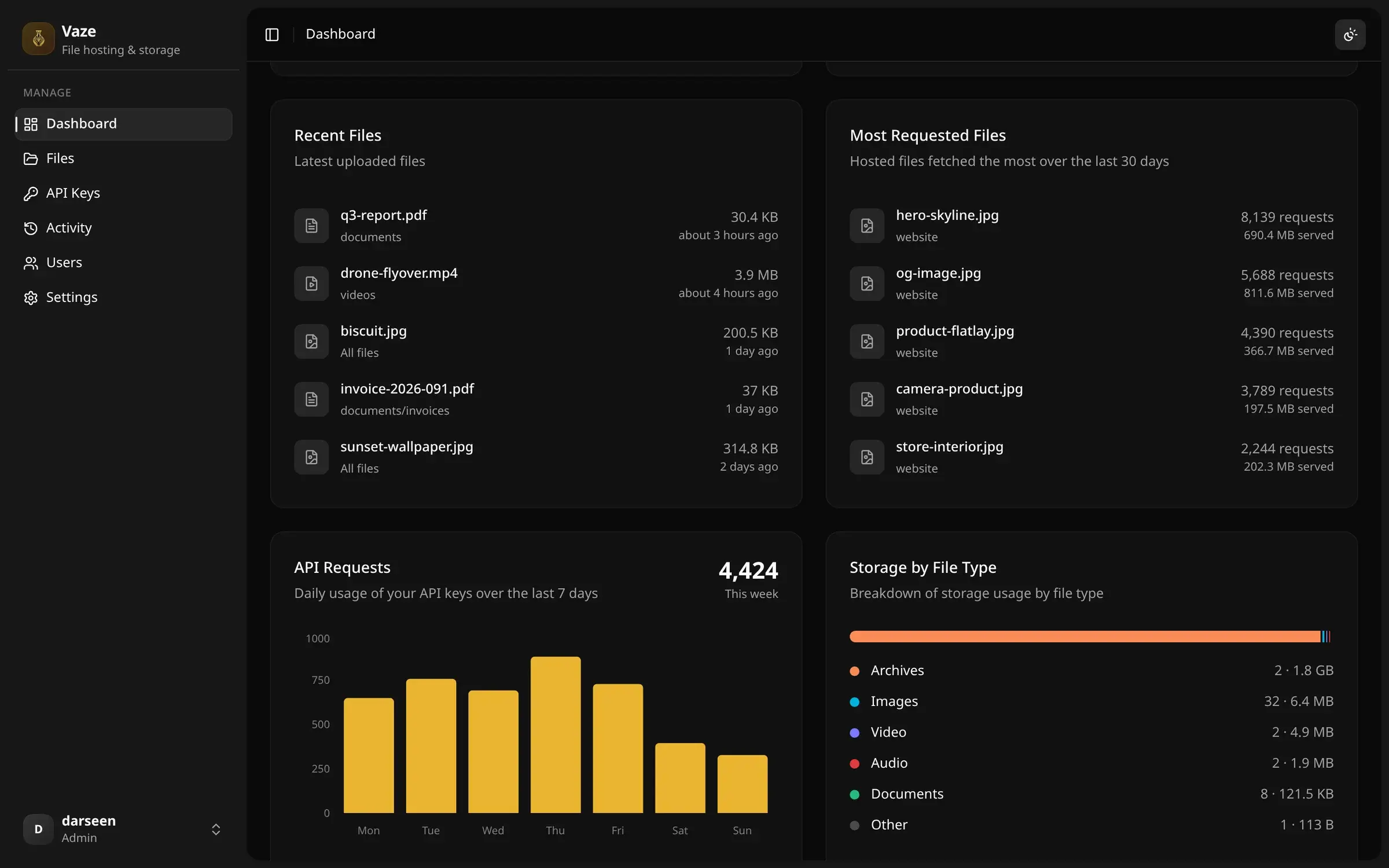
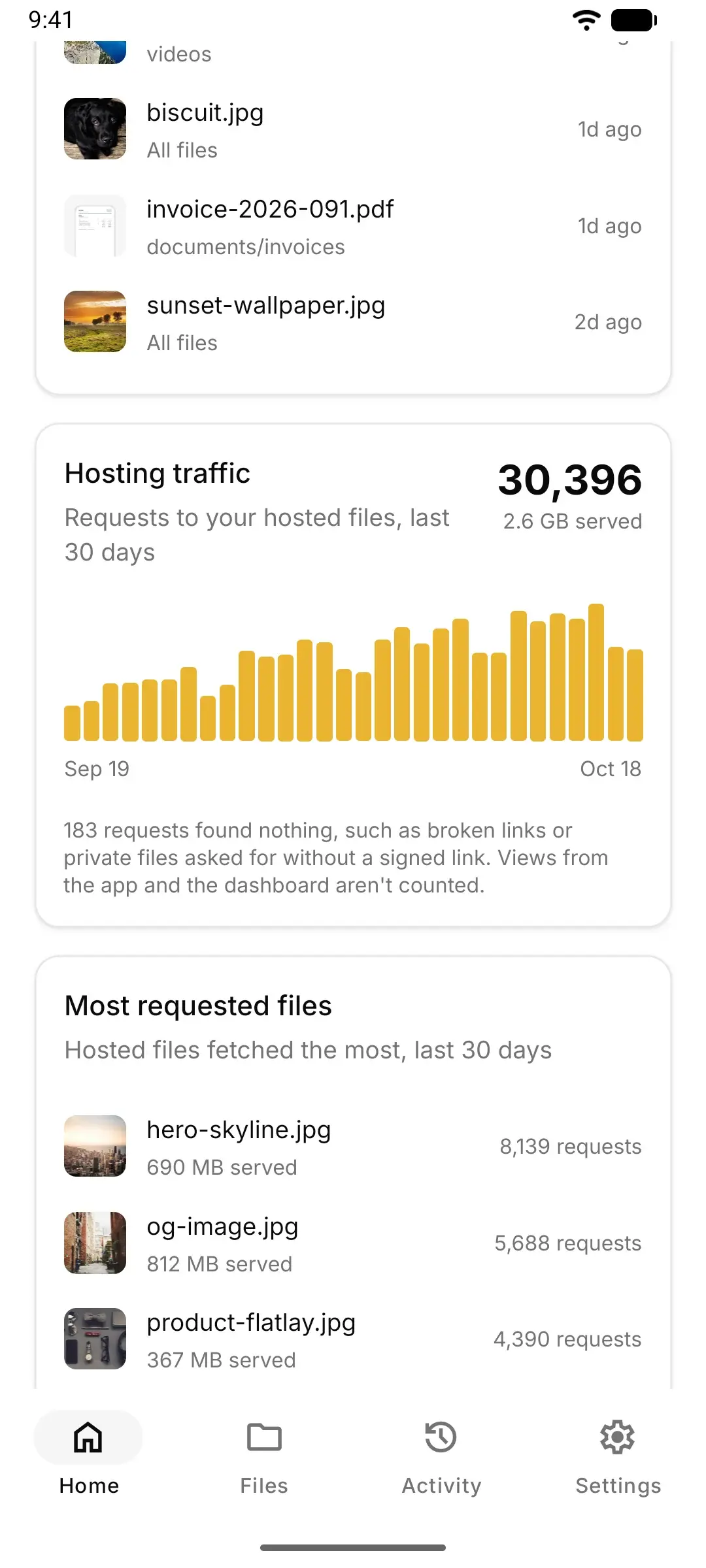
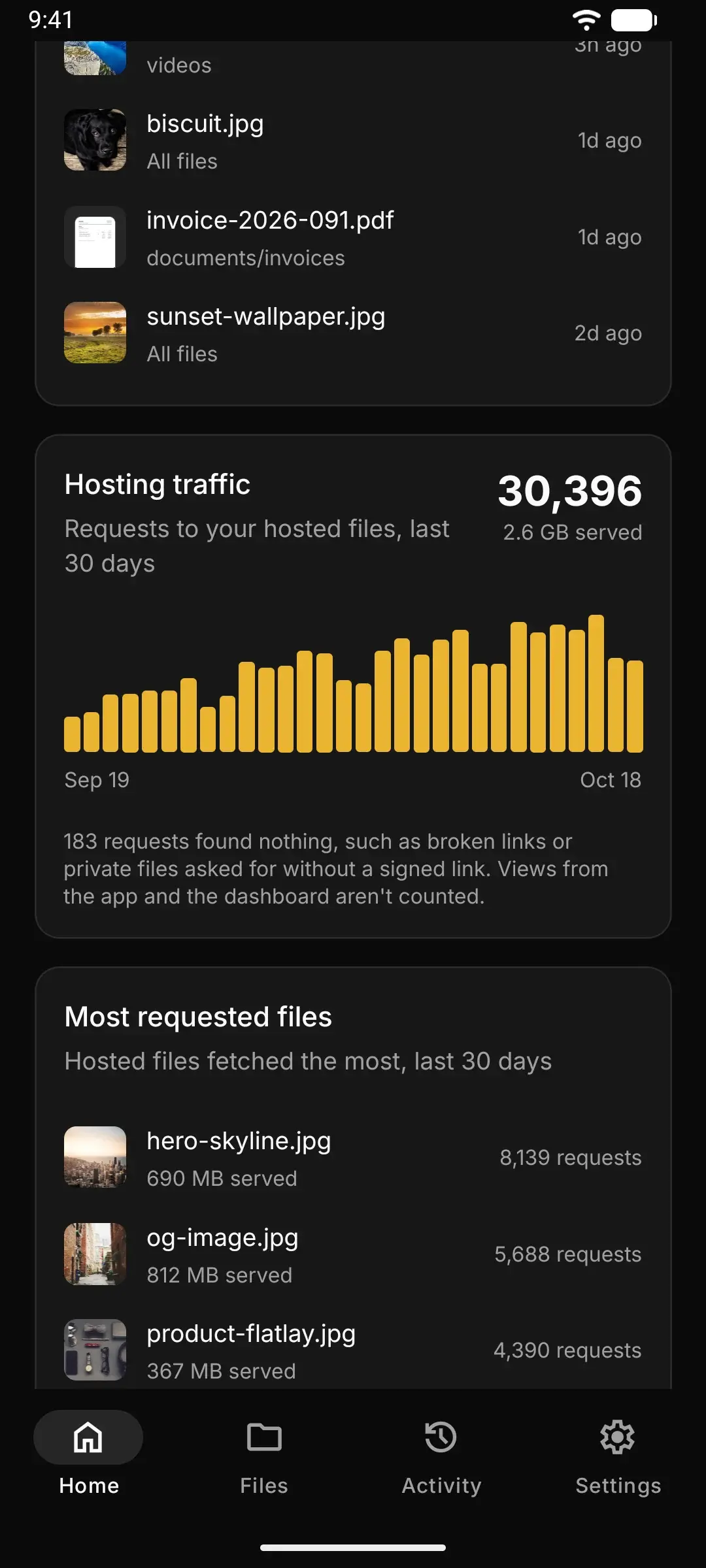
The dashboard counts requests and bytes served, ranks your most requested files and flags links that found nothing.
Decide who gets in
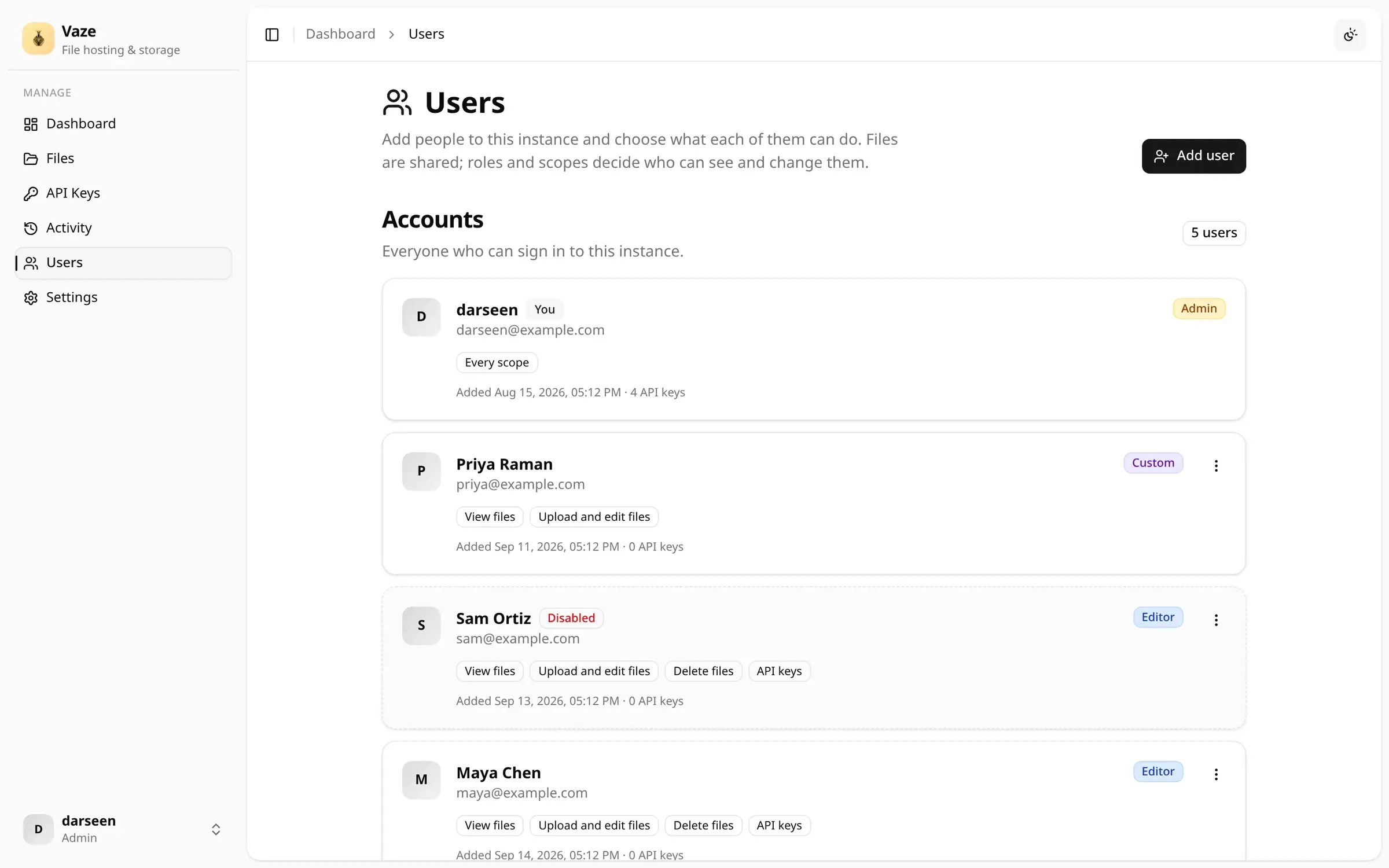
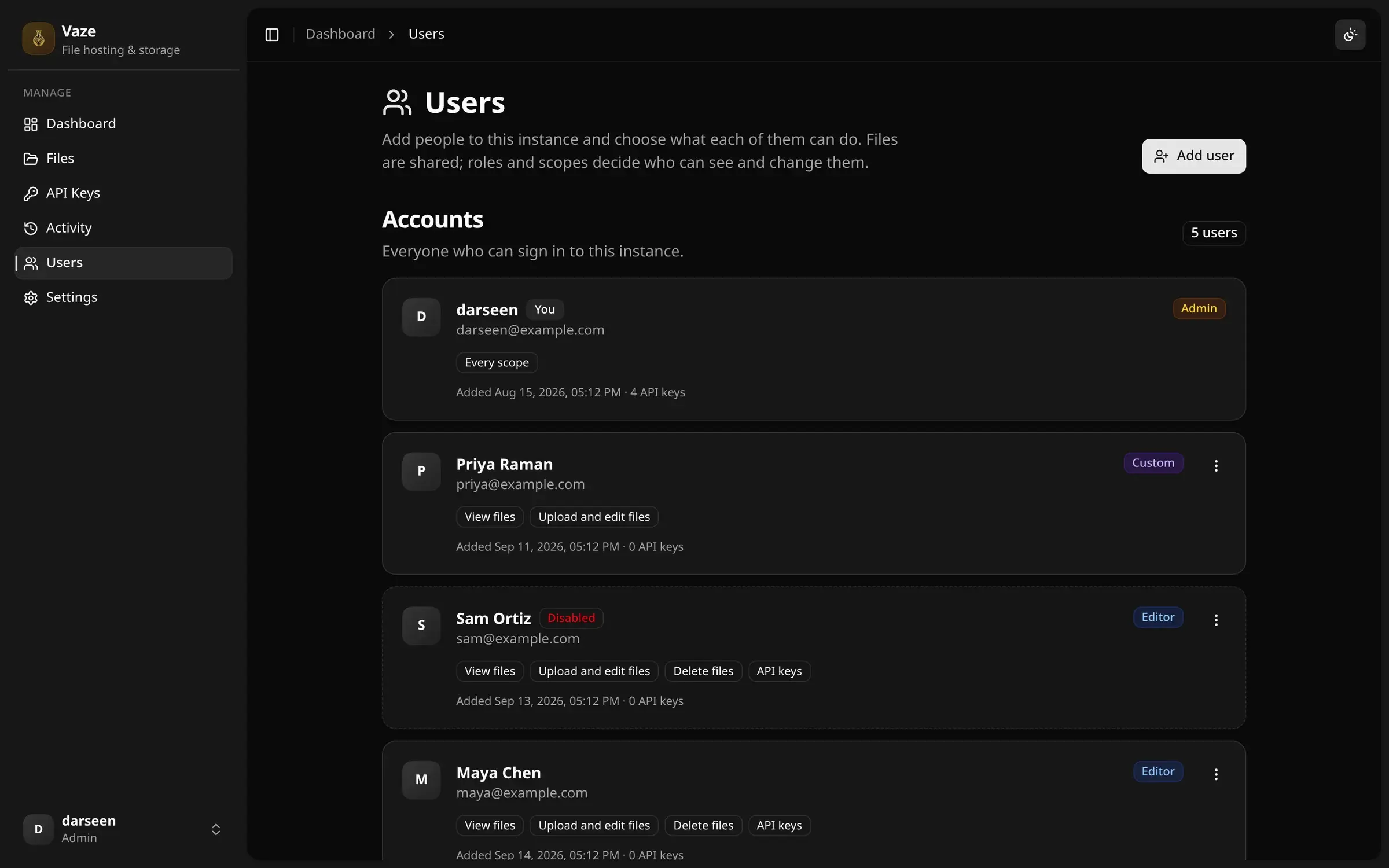
Vaze starts with one admin account. Add people when you need to, and give each of them only the access they need.
Roles and scopes
Make someone an Admin, Editor or Viewer, or pick their scopes one by one. Disable or remove them at any time.
Scoped API keys
Keys for your apps can read, write or delete and nothing more, and can expire on a date you set.
Alerts worth reading
The dashboard warns about low disk space, failed uploads, and keys that are about to expire or sit unused.
Activity history
Uploads, deletions and account changes are logged, and old entries are pruned for you.
Your server in your pocket
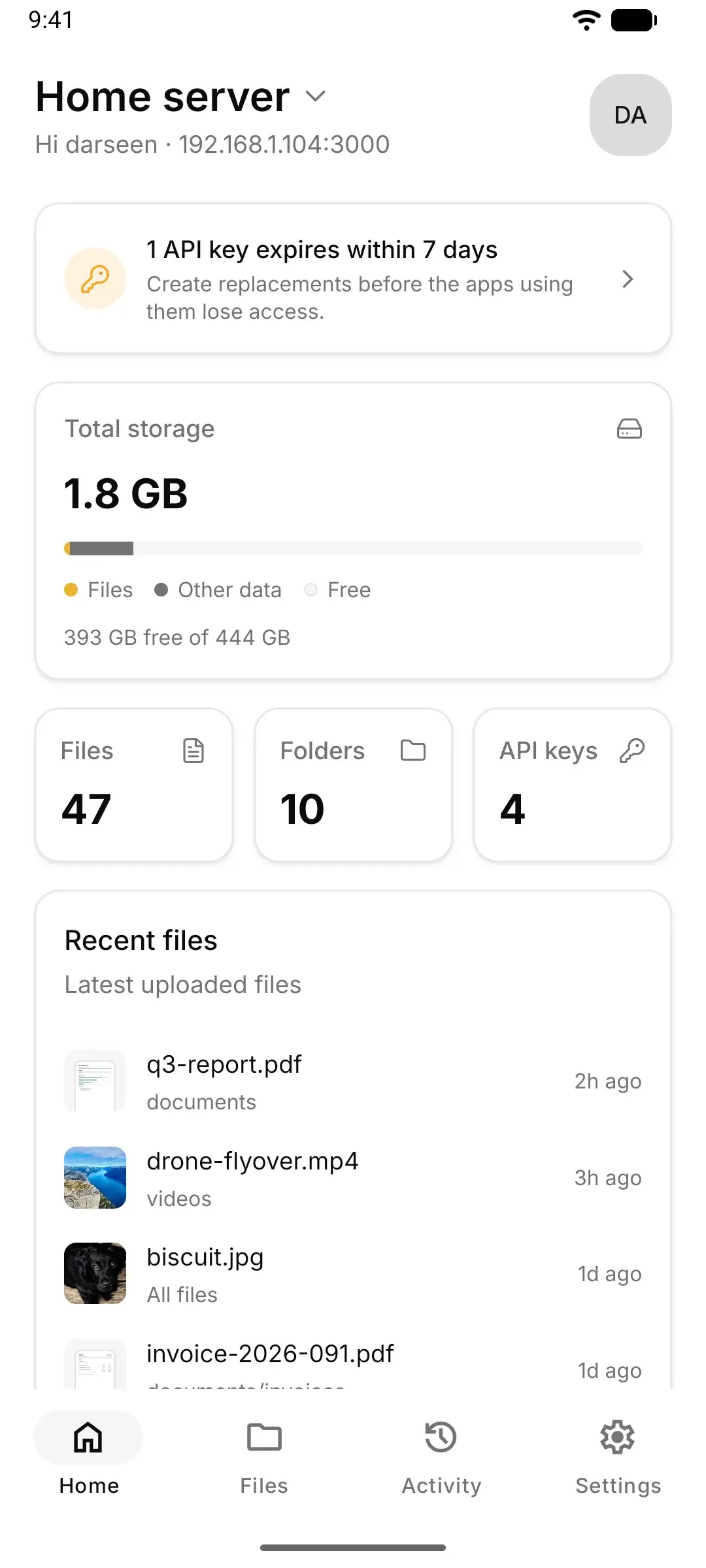
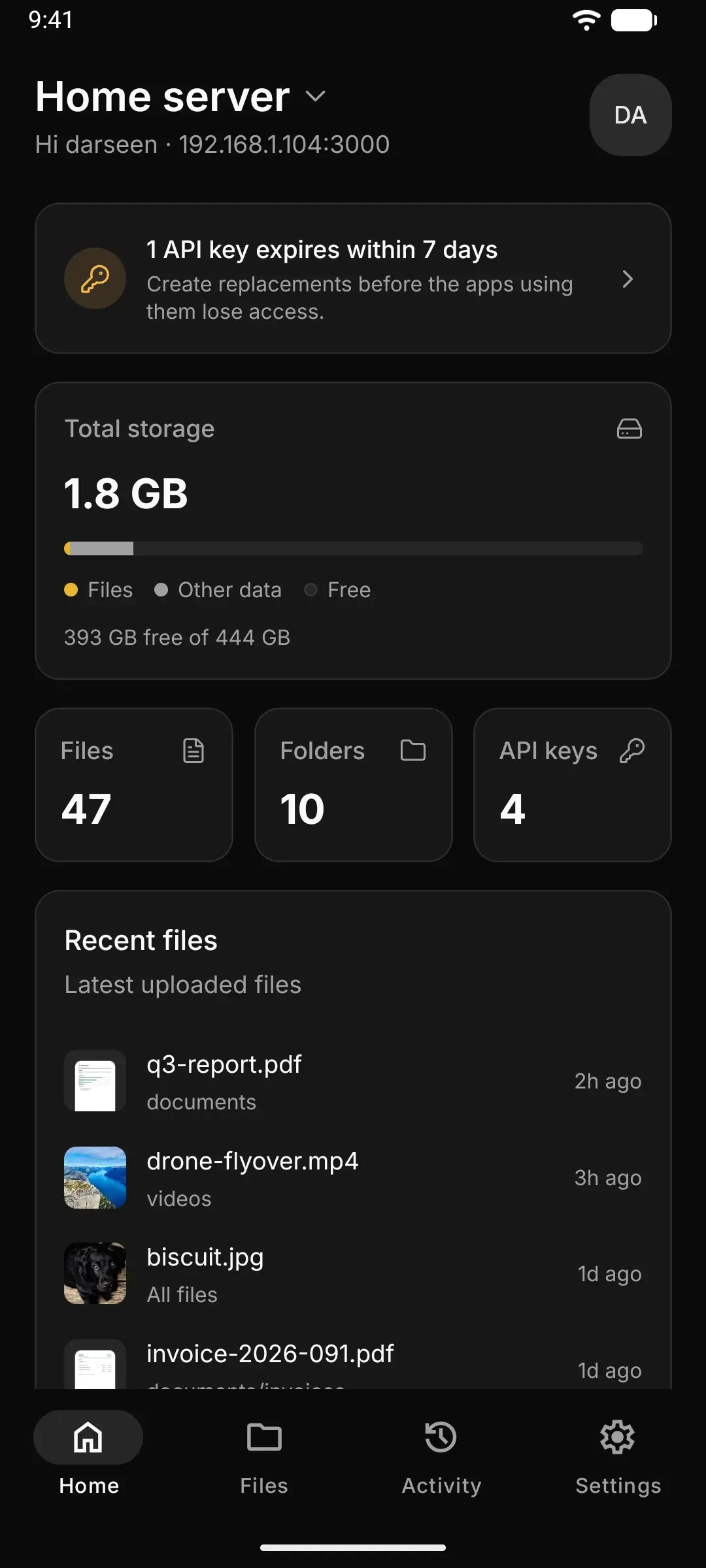
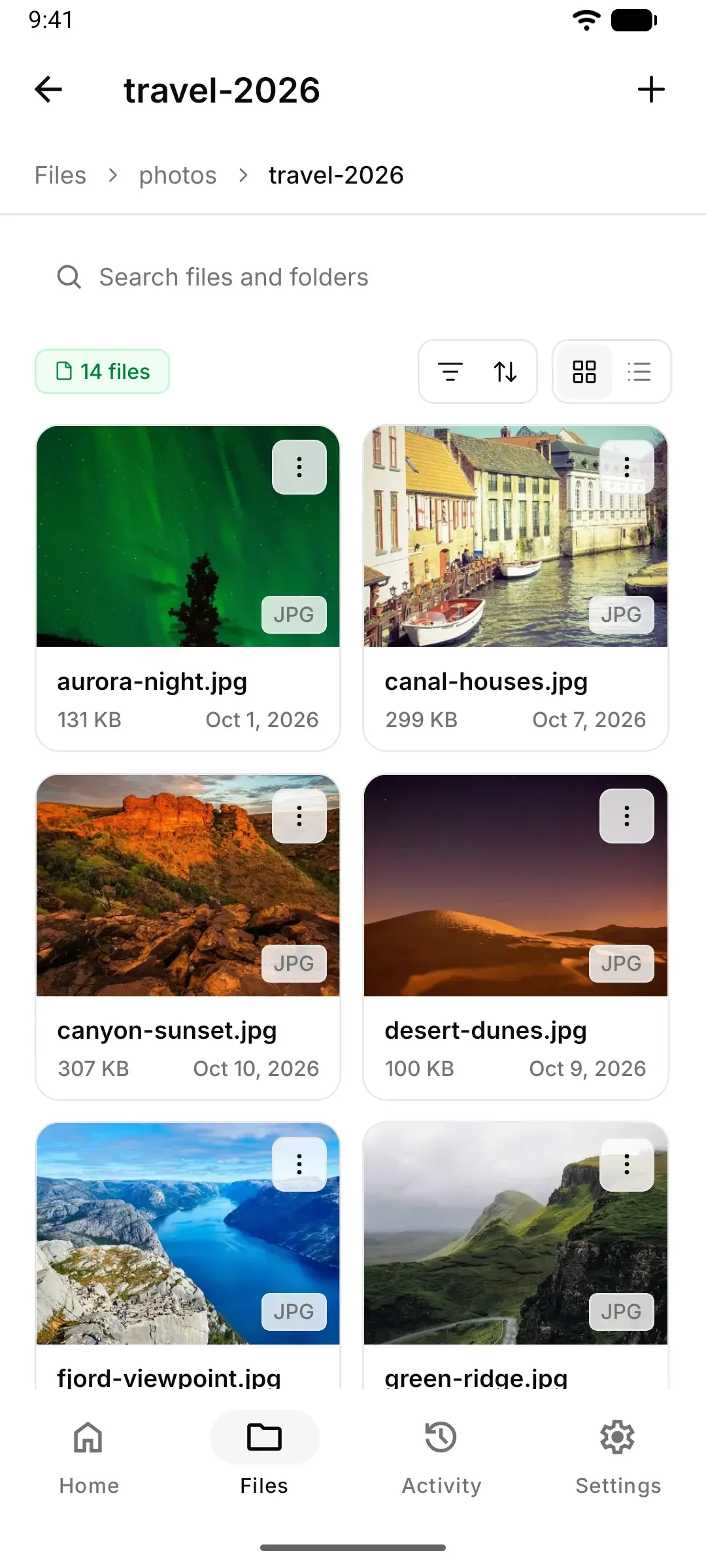
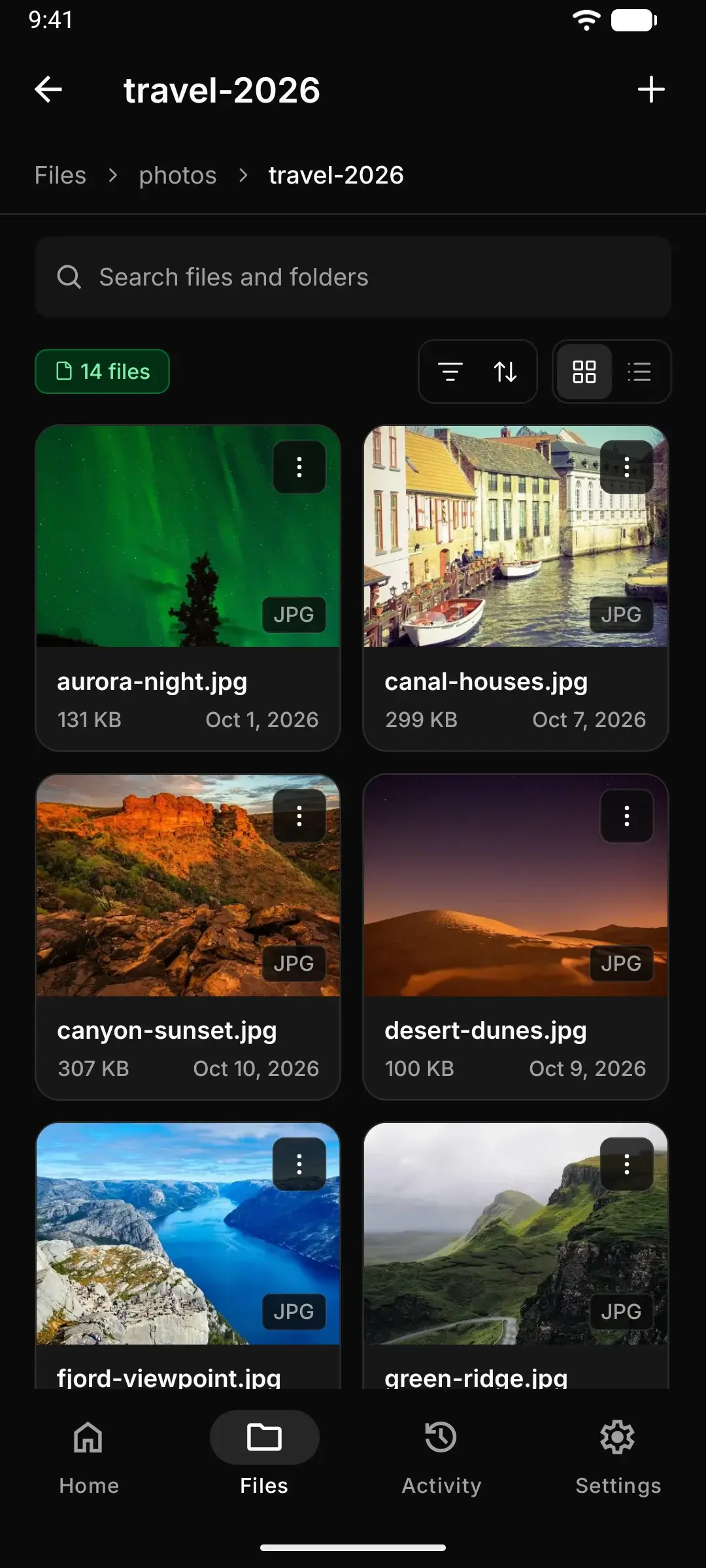
The Vaze app for Android connects to the same server and keeps up with everything the web dashboard does.
All your servers
Add a home server and a VPS side by side. A LAN address like 192.168.1.20:3000 works too.
Upload from your phone
Send photos, videos and documents with live progress, and cancel any of them.
Save and share
Save files to your Downloads folder, or hand them to another app with the share sheet.
The same dashboard
Alerts, storage, traffic and recent files, laid out for a small screen.
Use it as your app's file storage
Upload, list, sign and delete files over a JSON API, or let the TypeScript SDK do it for you.
import { readFile } from "node:fs/promises";
import Vaze from "@darseen/vaze";

// reads VAZE_URL and VAZE_API_KEY from the environment
const vaze = new Vaze();

const hero = new File([await readFile("hero.png")], "hero.png", {
  type: "image/png",
});
const { data } = await vaze.files.upload({
  files: [hero],
  folder: "website",
});

console.log(data?.files[0].url);
// https://files.example.com/api/hosting/website/hero.png
Up and running in a few minutes
The installer checks Docker, writes your config with a fresh secret and starts Vaze. Run it again later to upgrade.
$ curl -fsSL https://raw.githubusercontent.com/darseen/vaze/main/scripts/install.sh | sh- Step 1
Run the installer
Run the command above on the machine that will host Vaze. It asks where to install and which address you'll open it on.
- Step 2
Open your server
Visit that address in your browser. By default it is the machine's address on your network, on port 3000.
- Step 3
Create the admin account
The first account to register becomes the admin. Then add people, keys and files.